Some black and white lever arch folders on a shelf
Tools & Tips, Basics, Computer Maintenance

4 Ways to Backup Your Files and Prevent Data Loss

Whether you’re using your computer for business or just for personal stuff, the chances are there are files, photographs and other pieces of info (passwords, etc.) that you don’t want to lose. If you want to be sure you have it all, should the worst happen, are you prepared?

When did you last back up your files and folders?

We all know that computers go wrong, sometimes permanently, but in recent years they’ve become so stable and reliable many of us take it for granted that this won’t happen to us. If you can’t remember the last time you manually backed up your system – or checked that your backup tools are working as they should – this post is for you!

This reminder is timely because lately there are lots of people who fallen fowl of the latest Windows 10 update. Yes, you read that right. Microsoft, in their infinite wisdom, pushed an operating system update to all their users which corrupted the hardware on some computers. One day everything was fine, the next, not so. Thank you Microsoft. It’s unlikely any big corporations were caught out by this as usually large IT departments will test a bunch of updates before rolling them out across the company so it’s mostly likely small business owners and personal computer users that are taking the hit.

Luckily, some of the people impacted had solutions in place. Others thought all was well but discovered, too late, that their backup software had failed for reasons unknown so their files hadn’t backing up files automatically. And then there are those who hadn’t thought about backups, finding out the hard way how important they are.

And don’t be fooled into thinking that this won’t happy to Mac users either. A Mac is still just a computer at the end of the day, albeit a very shiny (and usually expensive!) one. In most cases, at least where the Windows 10 update was the probably cause, data can be recovered (at a price) but what if it were some other issue and the data was gone? Accidents happen, as do power surges, and broken Window’s updates! Furthermore computer components reach their natural end. What do you stand to lose if your computer just doesn’t work the next time you try and start it up?

Luckily there are bunch of ways you can ensure your data is backed up and secured away from your local working environment. See which of these methods work best for you then stick to it.

1. Do it all your self

If you’re going DIY with this you need to set a regular backup schedule. Don’t forget! It’s a boring but necessary job that’s it’s up there with clearing your gutters or getting your car serviced. 

Decide what you need to back up and where you will back up to (a separate hard disk, network attached storage, a disc, or a simple USB key). Once you have a plan devise a system. Write it down. Do the same thing everytime. Put the date in your diary. Don’t forget!

To make things easier you can use some helpful freeware like SyncBack, which enables you to create backup or synchronisation profiles. These can save a lot of time by allowing you to back up a collection of files or folders to a pre-defined space. I don’t use this so much now but when I was studying I kept all my files on a USB key, which I then used a SyncBack profile to sync my working files to a folder on whatever computer I was working on at the time. It’s simple to set up and then you don’t need to worry about whether you missed anything important. Just remember to create a new profile or modify your existing profiles when you’ve created new storage locations.

2. Store files locally, but backup to the Cloud

We’re all in the habit of saving files to our hard disks. Many of the programs we use regularly are more flexible and feature-rich than cloud-based equivalents, and some cloud-based apps are expensive (Adobe, for example.)

Dropbox started the trend here but now there are plenty of alternatives for cloud-based storage that will sync to local folders on your laptop, tablet or phone. The advantage of these over any manual approach is that you connect multiple devices to a single account, meaning there’s a single online repository for all your files and folders.

Aside from Dropbox, there’s Google Sync, which is great for users on any platform. f you were using Google Drive before Windows 10 came out and it stopped working, it’s worth revisiting Google Sync & Backup, which now seems reliable – mine backs-up every time I power-up the laptop. It slows things down for a while, so if that’s a problem it’s useful to be able to pause it, but usually I just leave it running because once it’done it’s done. 

For Mac users there’s always iCloud and for all users there are many other paid options, depending on how much security you want/need and how much storage space.

If you’re backing up photos paid for space can quickly get expensive. An alternative then is to keep your paid for storage (or free quota, if that’s enough) for data and use something free like Flickr, which has an auto-uploader feature: just open the app on your phone and, if configured correctly, your photos will start to upload. Just run it when you go to bed and you photos and videos will be fully backed up by morning. Easy peasy.

3. Use the Cloud, always

Then there’s the option of doing everything in the cloud. If you’re happy to keep all your files online and do away with local copies of software, you can decide to create and store all your files and documents in the cloud. This won’t work for photographs of course – they are always created in another platform and always need to be moved or duplicate din order to ensure you have digital copies – but for text content or spreadsheets, this might be the solution for you.

Google Docs and Sheets is one such option. When you create any files using Google Docs copies are always stored to Drive. This means they’re always accessible – and you can still create or download local copies if you really want or need to.

Likewise, there are many online software platforms to help with managing your business. There’s Trello for project management, Wave for managing your accounts, Harvest for time recording and invoice (you can also use Wave for invoicing but I prefer Harvest). It’s also a good idea to keep your email “in the cloud” – so use Gmail or, if you have a custom domain, the webmail utility that is enabled for that domain by your host. If security is a concern there’s always Protonmail, which guarantees end-to-end encryption on all your messages.

Most of these tools are totally free, so for no cost you can keep your files away from your local drive. No backups needed!

4. Don’t forget your website!

And, if you’re running a business with an online presence, don’t forget your website! If someone manages your site for you, check with them when backups happen and where they are stored. This may be something they initiate for you or something that is automated but either way you need to know where you can find a copy of your website if something goes wrong. A website lives on a server, which is just another name for a computer, so as with all computers, sometimes these things go wrong. Your site or the server could be hacked or corrupted. And then what? You’d still own your domain but your site, your content, your online presence would be gone in a flash!

Luckily there are some very simple solutions for automating site backups. How you do it will depend on how your site is hosted (private server or web builder platform, being the main two) and what plugins or apps are available. Speak to whoever manages your site for you – and if you don’t have anyone, give me a call!

Do you need help with this or any other aspect of your personal or small business computing? Get in touch to find out how I can help.

Photo by Samuel Zeller on Unsplash

Social Media, Tools & Tips

Facebook Pages vs. Profiles for Business

I’ve seen quite a few tech groups talking about Facebook pages lately. These discussions have come about because members of the various communities I participate in online have been impacted negatively by following this advice from a number of online “influencers” who are encouraging anyone setting up a business to do this via a Profile. This could mean running your business through your personal profile or creating a business-specific profile. An example of using a personal profile would be if Joe Bloggs sells his homemade cosmetics under his own name or creates a separate business profile called Joe Bloggs Cosmetics. Whether you do one or the other of these things, neither is recommended. In fact, you absolutely should not be doing either of these things.

The reason this is an absolute no-no is because the Facebook terms and conditions actually prohibit using Profiles for business purposes. Use them to share information about your family, friends, hobbies, whatever – but it has to be personal information.

To comply with the Facebook Ts & Cs, if you’re running a business it should be via a Page or a Group. Failing to do this is resulting in some small businesses built entirely around Facebook having their profiles shut down by Facebook. Usually if this happens they notify you – but once it’s done there’s almost nothing you can do about it. If this happens, just like that all your business contacts, all the information you’ve shared, the reputation you’ve worked hard to create – along with any personal information, such as images and updates – vaporise. For any small business this scenario would be a disaster.

So how can you avoid this happening to you?

First and foremost, do not use a Facebook Profile as the primary online platform for your business. For Facebook you must create a Page. It’s really very simple to do and also has the advantage that you can manage it via the Facebook Page app, making it easy to separate work and home, reduce distractions (you’ll only see alerts relating to your page not that your Great Aunt likes your cat photo) and also keeping your personal information hidden. 

In my view the safest way to use social media is to own the data yourself and use social media as a way of sharing it, not as the main show. So create a website that you own the content for, that you control, that you can back up, that you can build a following around, and use social media platforms, like Facebook, Instagram and Pinterest, as a way of sharing that information and building a buzz around it. Even with a Page rather than a Profile, Facebook still own all that information and can take it away just like that.

It’s so much part of life these days that we take it for granted. If you’re going to put all that time and effort into marketing yourself online you also owe it to yourself to ensure that effort is futured-proofed as much as possible.  

Image credit: iStock.com/marchmeena29


If you need help with this or any other aspect of your home or business IT, contact me to arrange a free consultation.

Tools & Tips

Spring Clean Your System: Part One

Clean Up Your Hard Drive

Regularly cleaning your computer’s hard drive, removing unwanted and outdated files, is an important computer maintenance task that can be easily overlooked but that is quick to do and has lots of benefits in terms of security and the smooth-running of your equipment.

When we use our computers – writing documents, editing photos, checking our e-mails, browsing the Internet, or whatever – the programmes that we use create and store temporary files that build up unless we manually delete them. Sometimes these introduce security vulnerabilities but more often than not they just fill up the computer and slow it down. They’re a fact of life; the computing equivalent of that fluff ball that always appears in the corner of the room.

There are various free tools we can use to remove them, all of them safe and secure. In this post, the first in the Spring Clean Your System series, I guide you step-by-step through the process of cleaning out the junk files. In this post we’ll be using CCleaner, which is a free application you find online.

Install and Run CCleaner

The very first task, if you haven’t already got the program on your computer, is to download and install CCleaner. (There are versions for Mac and PC. I recommend downloading and installing a trial of the Pro version then downgrading to the free version after the trial ends if you decide not to keep going with the Pro version.)

Once this is done, open the CCleaner application.

When you first open it you will see that there is a list of programs under the Windows tab, a menu on the left hand side, and a Check for Updates link on the bottom right.

If this isn’t the first time you’ve used CCleaner, click Check for Updates and update the program before using it, to ensure you have the latest version.

Run CCleaner on Windows and your Applications

When you first open the application, the options that are selected are the recommended defaults for cleaning, so you see things like Internet Cache, Internet History, etc. apps selected. There are also a number of options that aren’t selected and are slightly greyed out underneath those that are checked. I usually check these but whether you do this or not is up to you. I would recommend you leave the as they are and just go ahead with the defaults. This will give you system a good clean but will also keep some of the useful data that is stored, such as Saved Passwords and Autocomplete Forms History, intact. Of course, if you’re happy to delete that information, go ahead and tick those extra boxes.

CCleaner1.gif

The same goes for the Applications tab; just leave the defaults as they are unless you want do a very deep clean, which would mean also deleting some potentially useful data, like stored passwords.

To run the application, make sure your Internet browser (Firefox, Chrome, etc.) is closed. If a browser window is open you will get an error when you try to run CCleaner as it won’t be able to clean the files associated with it.

Click the Analyze button. This does a dummy clean, which you can check before doing it for real. With this in progress, the Analyze button changes to a Cancel button and the status bar appears, showing you how much of the clean is complete (in the screenshot below you can see it’s at 35%).

CCleaner3

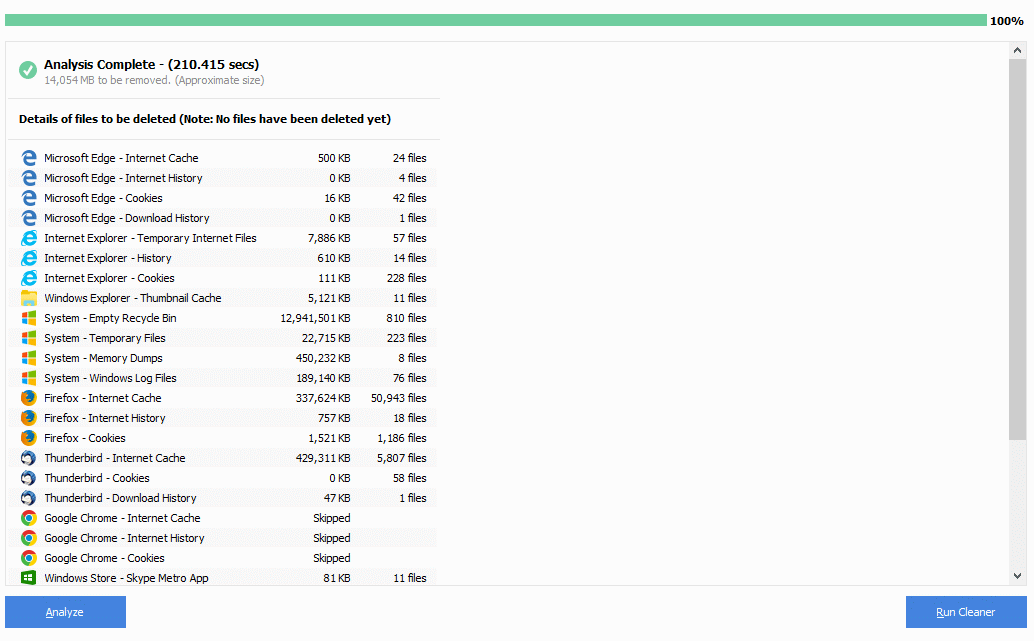
When this is done you’ll get an overview. In the screenshot below you can see the list of programs that have been analyzed and how much data can be deleted in the clean. It’s been a while since I ran this, so you can see I have ~14GB of data to clean!

Also note, that I didn’t take my own advice when running the app, so Google Chrome, which as open at the time, has not been cleaned. I will have to run it again a second time, with the browser closed, to clean that up.

CCleaner4

Now click the Run Cleaner button to remove the files from your hard disk.

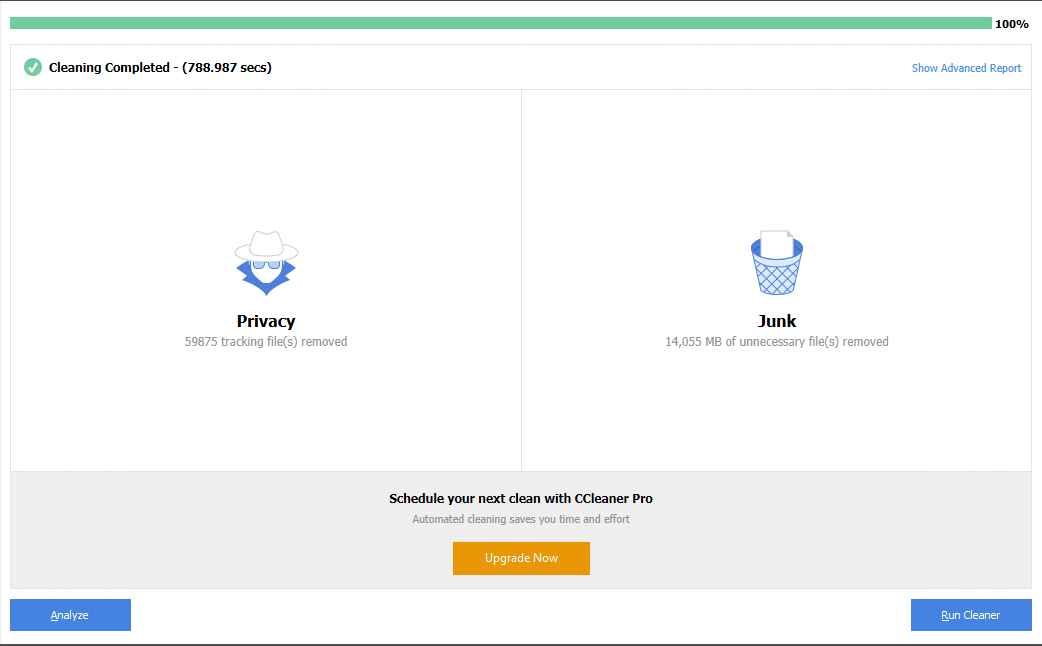
When the process has finished (you will see a progress bar, as you did when you first analysed the clean) the Cleaning Completed screen, as shown below, is displayed.

CCleaner5

That’s it! We’re halfway there. Now to clean up the registry.

Run CCleaner on the Registry

Click on the Registry tab from the left menu.

CCleaner6

Again, we’ll just use the defaults. This will check the computer registry for errors.

First click the Scan for Issues button. If your system is anything like mine quite a lot of files will come up! These are usually files that are added when a new application is installed or an software update is performed.

CCleaner7

At the end of the scan you’ll see a list of issues.

Next click the Fix Selected Issues button to run the program again.

At the prompt, click Yes. CCleaner will run the Registry scan again, this time fixing the issues that have been identified.

CCleaner8

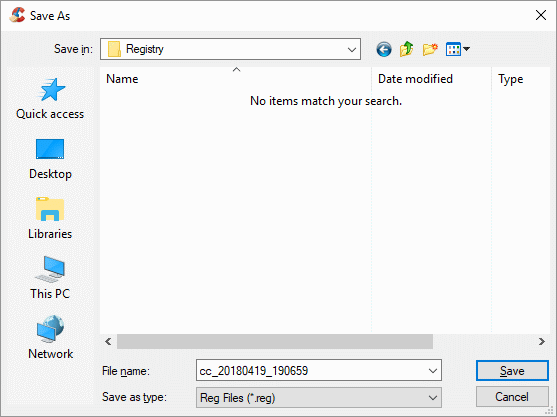
Navigate to or create the folder where you wish to save your registry file backup, then click Save.

CCleaner9

At the next popup window, click Fix Issues (to go through every issue one at a time) or click Fix All Selected Issues (recommended.)

CCleaner10

CCleaner will start to go through the list of issues and will show this screen when it has finished.

CCleaner11

At this point you could close CCleaner and move onto the next step, but it’s always useful to run the Registry Cleaning steps again and then again until no files are found. On my system, on this occasion, I ran it a total of four times. The first time it found 991 issues. The second time it found a further 29 issues. The third time, 12 issues. Then we were done – no more registry issues, yay!

Update and Run your Anti-Virus Software

Now, one last job because it’s easily overlooked and now would be a good time to do it: update and run your antivirus software. There are too many packages available for me to be able to document instructions so if you need help specific to your system, want some help go through the steps outlined in this article, or would like me to do all of this for you, in person or remotely, call or email to arrange a personalised session. 

A full PC clean, at your home, on up to three computers, will cost 100 euros. Call today to arrange a time!

Download Links

CCleaner  https://www.ccleaner.com/ccleaner/download


Why are we doing this? Read Spring Clean Your System Series: Introduction to find out.

Image credit: iStock.com/valio84sl

Tools & Tips, Tutorials

Spring Clean Your System Series: Introduction OLD

Spring is in the air – at last! With the increasing light, we naturally start to clear out all those dusty corners and give our homes and gardens a good tidy up, ready for the year ahead. But what about your technology?

If, like me, you use your computer for work and also have a number of other devices you use, such as a table or iPad, the chances are you have a lot of files to organise. Whether that’s photos, e-mail or documents, just like your regular paper-based filing pile, a lot of clutter can build up over time if you don’t stay on top of it. And that’s just the stuff you see.

Whenever we use technology lots of files are used behind the scenes and these also mount up over time; things like temp (temporary) files, cookies from websites we visit, and a legion of other one-time and short-time-use files. All this invisible clutter stays on your system and over time slows it down, which is why it’s worth removing it. And what better time than Spring, since that’s when we get busy tidying generally.

Now all you need is a few specialist (free) tools and the know-how. What better way to start the week than with decluttered and organised computer! To help you with this I’ve put together a series of posts that will take you through the various ways you can tidying up and also get organised.

What’s Covered

First we’ll look at ways to declutter all those invisible files using some free software designed just for that purpose.

Then we’ll look at decluttering our files and applications.

And finally, once we’ve cleaned up our act, we’ll make sure we’ve got everything backed up, either to The Cloud or to an external disk or drive.

While you’re waiting…

In the meantime, why not get out some screen wipes and give the screen and keyboard a good wipe down. And, if you have a desktop PC or a laptop with a visible vent, it’s a good idea to put the hoover up to the back of the fan vent and suck out the dust especially if you have pets. No, seriously. One of our computers was constantly overheating. When we took the back off to check that all was well with the heat-sink we found, to our surprise, an enormous ball of fluff had collected there. No wonder it wouldn’t work!

Taking that one step further, if you’re confident to open the case on a desktop machine – and can do so without invalidating any warranties – it’s well worth giving your computer’s insides a good freshen up. Just open it up and give all the dusty looking bits a blast of air from an air canister such as this one on Amazon*. No more fluff – and no more whirring fan.

Although the focus of this will be on Windows systems, many of the techniques and tips will also be relevant for Mac users. Where there are differences, I’ll provide separate info in later posts.

Credits: main image copyright iStock.com/valio84sl


Are you ready to Spring Clean Your System? Don’t want to miss out? Make sure you click the green Follow button and subscribe to receive Languedoc 121 Tech tips and news via email.

PLEASE NOTE, that this post contains an affiliate link. If you buy something through one of those links you won’t pay a penny more but I will get a small commission.